
How to Get the WhatsApp Business API
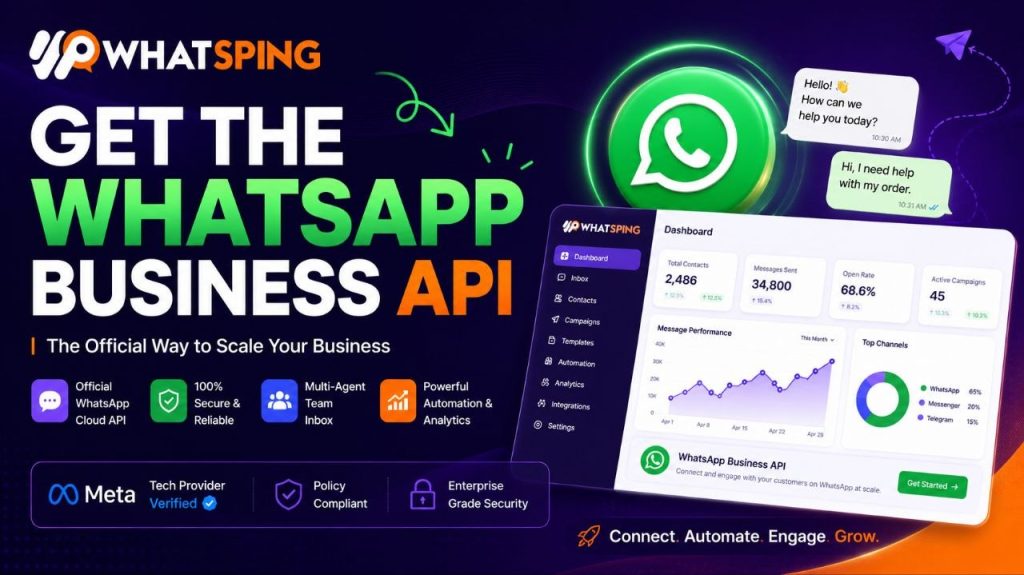
The WhatsApp Business API is the official way to message customers at scale — campaigns, order updates, support chats and automation, all through Meta-approved channels. If you have been putting off the setup because it sounds technical, this guide walks you through exactly what you need, step by step, with no jargon.
What the WhatsApp Business API actually is
The API — sometimes called the WhatsApp Business Platform or the Cloud API — connects your business to WhatsApp through Meta’s official infrastructure. It is the difference between running one phone and running a customer channel.
With the free WhatsApp Business app, one person, one phone, one inbox. With the API, your whole team can talk to customers from one verified number, send approved template messages to thousands of contacts, run chatbots that never sleep, and keep a complete record of every conversation. It is built for businesses that treat WhatsApp as a serious sales and support channel, not a side project.
Because it is the official route, your number goes through Meta’s verification instead of relying on unofficial workarounds. That is what makes it safe from the account bans that grey-market bulk tools are notorious for. If a tool promises “unlimited messages, no per-message fees”, it is almost certainly running outside Meta’s rules — and the ban risk is real.
What you need before you start
- A Meta Business account — a few minutes to create, free.
- A business phone number — ideally one that is not currently tied to a personal WhatsApp app.
- A business solution provider (BSP) — a platform like WhatsPing that handles the technical connection, template approvals and messaging tools for you.
That is the entire list. You do not need a developer, a server, or a deep understanding of webhooks — although you can get all of those if you want them.
Step 1: Pick a provider (or build it yourself)
You have two routes, and the one you choose depends on how much engineering time you want to spend.
The raw developer path. You read Meta’s API documentation, set up authentication, build webhook endpoints, handle message status callbacks, and create your own dashboard for sending and receiving. It is a legitimate path — plenty of large teams do exactly this — but it is weeks of work before you send a single message, and you own every bug.
The BSP path. A business solution provider handles all of that for you. WhatsPing is an official Meta Business Partner, and it uses embedded signup: you connect your WhatsApp Business account through Meta in a few minutes — no paperwork maze, no waiting weeks for a review. The platform gives you a shared team inbox, campaigns, chatbots and AI out of the box, and you keep full control of your number.
For most businesses — even technically sophisticated ones — the BSP path is the right call. You can always move to a raw build later, once you have proven the channel works.
Step 2: Verify your business in Meta Business Manager
This is the step most guides skim — and the one that trips up the most businesses. Before WhatsApp lets you scale, Meta wants to confirm you are a real business. There are actually three separate “verifications” in the WhatsApp API world, and confusing them is the number one source of setup delays:
- Business verification — Meta confirms your company’s legal identity using official documents. It unlocks certain Business Manager features and is the step most people mean when they say “verify my WhatsApp business account.”
- Number verification — you prove you own the phone number, usually with a code sent by SMS or voice call.
- Display name / green tick (Official Business Account) — the verified badge customers see next to your name. It is separate from business verification and applied for later.
Business verification, step by step
- Log in to Meta Business Manager at business.facebook.com with admin access.
- Go to Business Settings → Security Centre.
- Check your current verification status, then click Start Verification.
- Select the country on your business documents — not the country you operate from, the country the documents are from.
- Confirm the legal business name and provide your business details.
- Upload a government-issued business registration document and a separate proof-of-address document. Both should be recent: utility-bill-style proofs are usually accepted only within the last 90 days. Submit clean colour PDFs at 300 DPI or better — blurry scans, screenshots and photos of documents get rejected.
- Submit and wait. Clean submissions usually clear in 1–3 business days.
The number one rejection reason: name mismatch
Meta compares three names: your Facebook page’s legal name, your Business Manager legal name, and the name on your documents. They must match exactly — including punctuation and entity suffixes like “Ltd” or “Pvt.” If they differ by a single character, verification fails. Fix all three to match before you submit, and you will save yourself a re-submission.
Do you actually need business verification?
Here is a fact many guides get wrong: since November 2023, Meta no longer requires business verification to raise your WhatsApp messaging limits. You can increase limits by messaging 2,000 unique contacts within 30 days while keeping a high quality rating. Business verification is still required for some Meta features, and it is still the fastest way to look legitimate to customers and partners — but it is not the gatekeeper it used to be. If you want the full walkthrough, read our separate guide on how to verify your WhatsApp Business Manager.
Step 3: Set up message templates
WhatsApp lets you message a customer freely inside a 24-hour window after their last reply. Outside that window — for marketing, utility and authentication messages — you need approved templates.
You create templates in the dashboard, submit them for approval, and usually hear back within hours. Common rejections happen when a template asks for sensitive data, uses promotional language that violates policy, or looks spammy. Keep them clear and value-focused and they sail through. Approval is not a one-time event: you build a small library of templates for the situations you actually message about — order confirmations, shipping updates, reminders, offers.
With WhatsPing’s campaign tool, you schedule approved templates to segmented audiences with delivery and read reporting. You see exactly who opened what, so you can improve the next campaign instead of guessing.
Step 4: Connect your tools
The real power comes from integration. Connect Shopify or WooCommerce to trigger order updates automatically the moment a status changes. Use webhooks to push conversation data into your CRM, so every WhatsApp chat becomes a record in your system of truth. Or build directly on the full REST API for complete control. WhatsApp becomes part of your stack instead of another silo — which is exactly how the businesses that win at WhatsApp marketing treat it.
Step 5: Go live and monitor account health
Import contacts, build a chatbot flow for the questions you get most, and send your first campaign. Then watch the numbers: quality rating, messaging limits, delivery rates.
With the official API and good practices, these stay healthy automatically. If anything looks off — a dip in quality rating, a message limit warning — the dashboard surfaces it before it becomes a problem. That early warning is worth more than any single campaign: a healthy number compounds into a channel you can rely on for years.
Common mistakes to avoid
- Using grey-market tools. “Unlimited messages, no fees” tools run outside Meta’s rules and get numbers banned. The official API has per-message costs — that is the price of safety, and it is small.
- Using a personal number. It causes migration headaches. Start with a dedicated business number from day one.
- Buying the API before planning content. Decide your first three campaigns first; the API is a means, not an end. A number without a plan is just an expense.
- Ignoring opt-in. WhatsApp is an opt-in channel by design. Buy a list and you will see it in your quality rating — and in your unsubscribes.
What it costs
Meta charges per conversation, by country and message category — roughly a few cents per marketing conversation, less for service messages. Your provider may add a platform fee on top. Whatsping keeps it simple: free for 30 days, then Standard or Premium, billed per organization. In Bangladesh you can pay in Taka with bKash — no international card required, which is still rare among WhatsApp API platforms.
Get started today
Setup takes minutes through embedded signup, not months of development. The number, the templates, the chatbot and the first campaign are all within reach this week. Start free on the official WhatsApp Business API and see what your customers do when you finally meet them where they already are.